
End to End SAML Authentication and Authorizacion with custom IDP and Cloud Identity Services
Prerequisites
- Install SAML tracer (browser extension)
Architecture & Flow overview
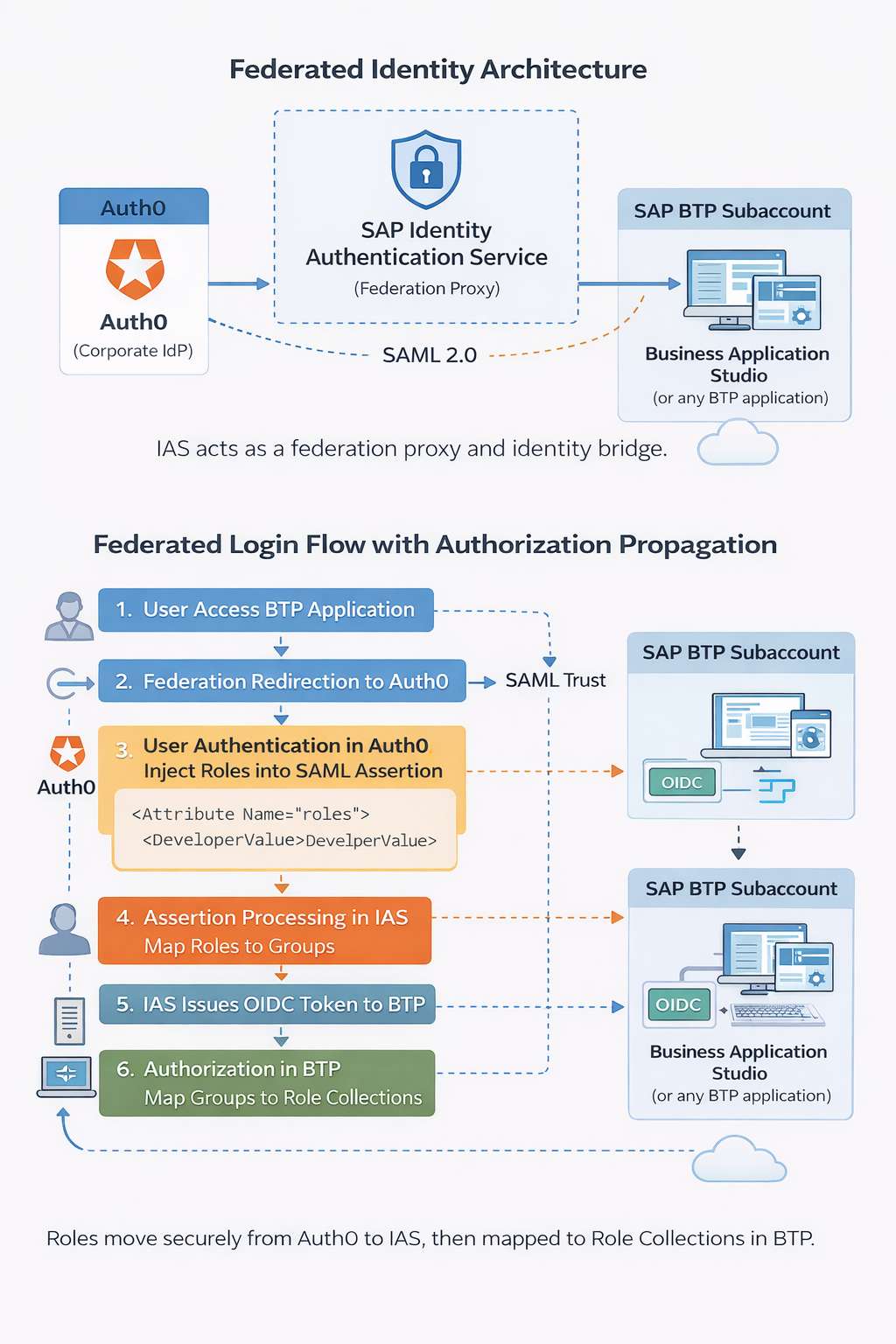
Cloud Identity Service
- Provision the default service, tenant test
- Remember the email that you will receive to activate your admin account in the tenant
Identity Providers → Corporate Identity Providers → Create- Download the metadata under
Application & resources → SAML 2.0 Configuration → Donwload metadata file
Custom IDP (Auth0)
- Create an account in Auth0
- Download metadata from this URL https://
.us.auth0.com/samlp/metadata/ - Paste the URL from IAS metadata AssertionConsumerService
Applications → Your app → Settings → Allowed Callbacks URLs
Cloud Identity Service
- Upload the metadata to IAS, go to
Identity Providers → Corporate Identity Providers → SAML 2.0 Configuration - To configure IAS as proxy we would need to activate the swith Identity Federation
Name ID Policy → Email
Subaccount
Trust configuration → Establish Trustwill display automatically the IAS tenant we just configured and it will create an app in IAS.- Open Business Application Studio and now you will see two links to login (use the url of the tenant, not default identity provider)
- It will trigger a 401 error and this is fine, because you haven’t authorization to execute BAS, let’s to the basic configuration.
- Assign role collection to the user that has been created under
Security → Users. -
Clean cache and do the login again, now we have access and it’s taken the role collection we have assigned in the subaccount.
- Let’s explore a little bit what we have in the SAML, do the login again but with SAML extension opened.
- In the SAML you should see some entries with SAML label, look for this kind of summary
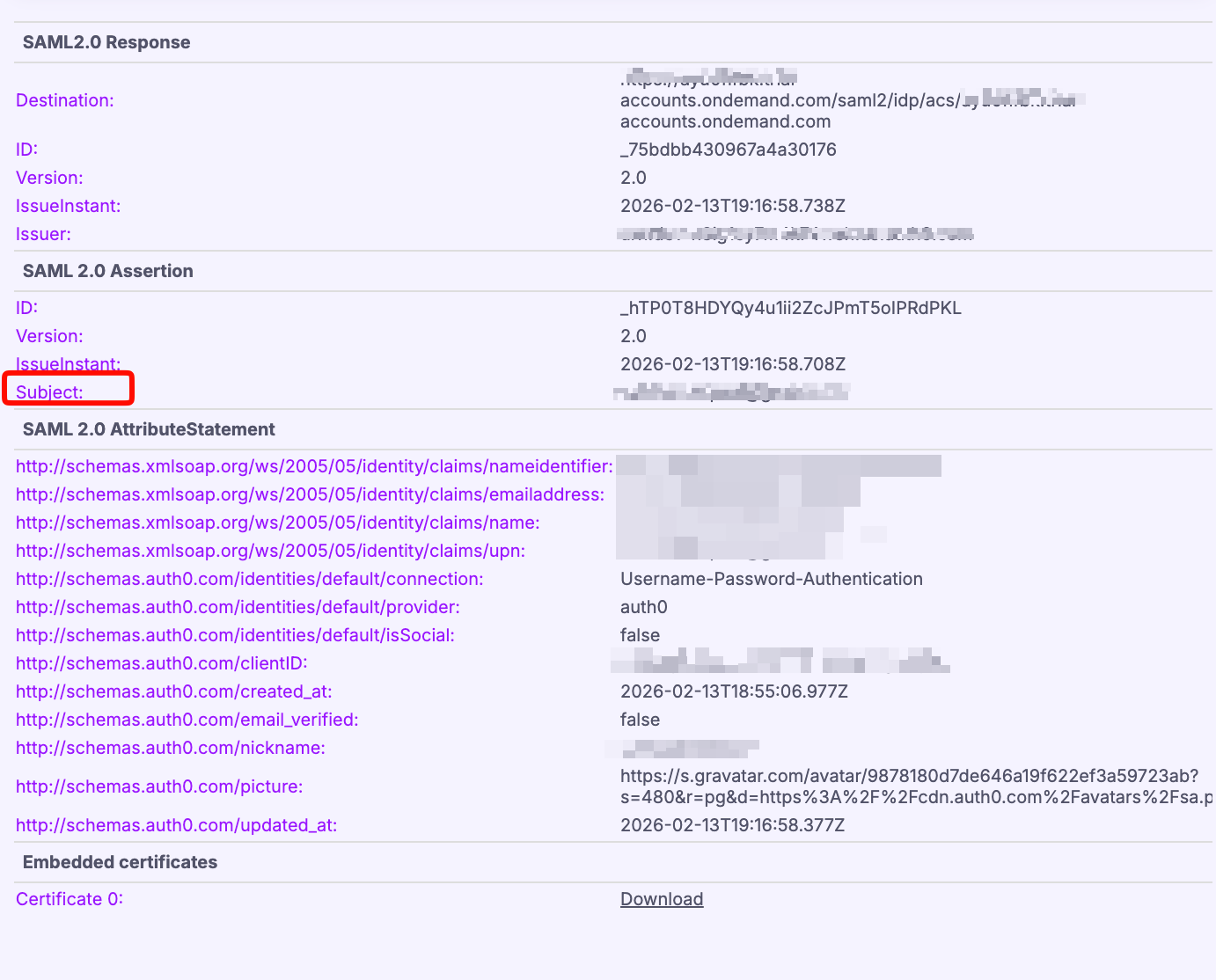
- At this point it’s important is the subject that is the ID (in our cause the email) what we have configured for users and it is what IAS is receiving.
Custom IDP (Auth0)
- Then now what we are doing is to configure the role collection at custom IDP instead of subaccount.
- User Management → Create Role “Developer” and assign it to the user.
- Let’s do the test to check it properly, do the next: unassign the role collection to the user at BTP subaccount level, clean cache and relogin in BAS, you will get error (even though you have the role assigned in custom IDP ), and this is because we are not telling to IAS neither BTP that this role means something. Open SAML tracer in this process, IAS doesn’t receive anything yet from custom IDP, so we are going to send the attribute in the SAML:
- Let’s add the script in this case.
Actions → Trigger → post-loginAdd action → create custom actionand name it as AddRolesToSAML
exports.onExecutePostLogin = async (event, api) => { const roles = event.authorization?.roles || []; if (roles.length > 0) { api.samlResponse.setAttribute("roles", roles); } }; ``` - And deploy (remember to add the box script to trigger)
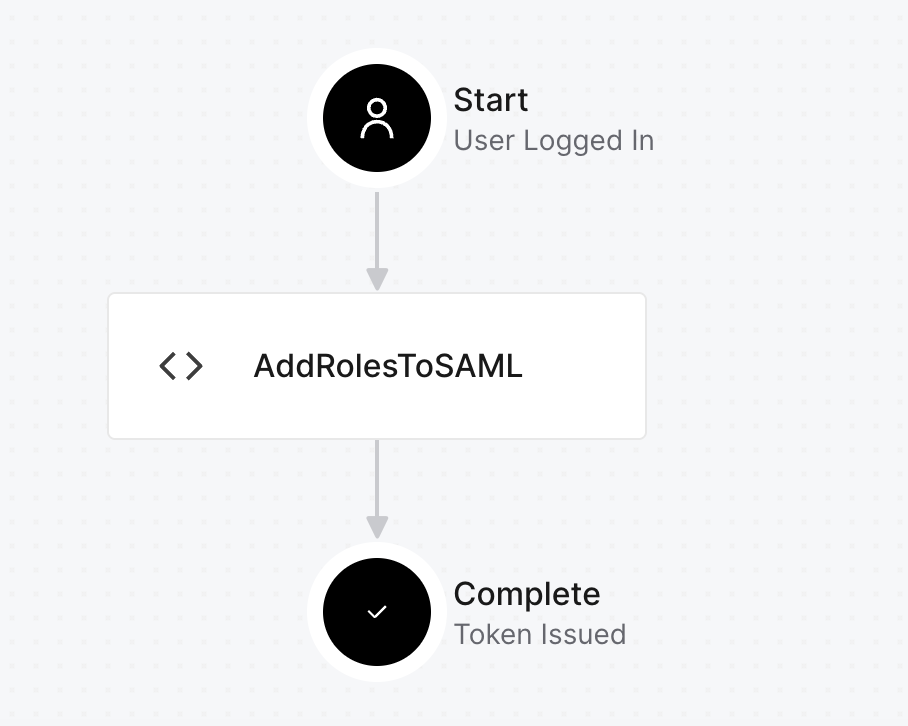
- Open SAML Tracer and relogin (remember to clean cache always in this kind of testing).
- In SAML 2.0 section
AttributeStatemmentwe can see that fieldroleshas appear and there is the role we have assigned to the userDeveloper.
Cloud Identity Services
- In IAS let’s go to
Applications & Resources → Select app subaccount → Attributes, here you will find the attributegroups, add another withCorporate Identity Providerand the name of the attribute we are receiving from SAMLroles, with this we are telling IAS that it will receive that attribute and it have to send it to the subaccount ingroupsattribute. - Before doing this mapping let’s test something, go to
Monitoring & Reporting → Troubleshooting logs, get the logs and look for the user you just login. Here we would see the login information between IAS and the subaccount and the type is OIDC (no SAML), at this point we won’t see the group attribute yet but after doing the map will appear. Test it by adding the attribute from the previous step and login, after that review this log again. As you can see now we are sending roles as groups from IAS to BTP Subaccount now: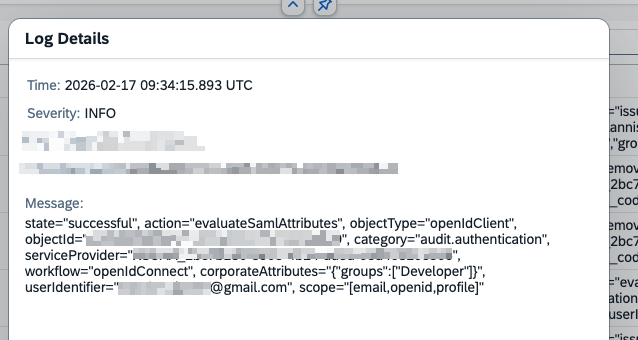
- Now we can do the mapping between our subaccount,
Security → Role Collection → Selecciona Business_Application_Studio_Developerand add under User Groups the role from Auth0 (in our caseDeveloper) and unassign it from the user. Clean the cache and relogin, you still have access to Business Application Studio but your user has no access to it in IAS neither in BTP Subaccount, the authorization is coming from the Auth0 assigment.
With this article we have understood the basics fot authentication and authorizacion with a custom IDP, we have choosen Auth0 as corporate IDP but it could be done with Azure that it’s also using SAML 2.0.
This is one of set of articles I want to write regarding Authentication & Authorization in BTP, this topic is to big to explain everything just with a couple of lines, let’s start from this and let’s talk one by one about all the aspecs and all the ways we can setup, and let’s find a proper way to configure it depending on the use cases we might face in our future projects!
Comments